
Choosing the Right GPU for Professional Workloads: A Practical Guide
A practical guide to choosing a GPU for rendering, machine learning, and scientific computing without relying on marketing claims.
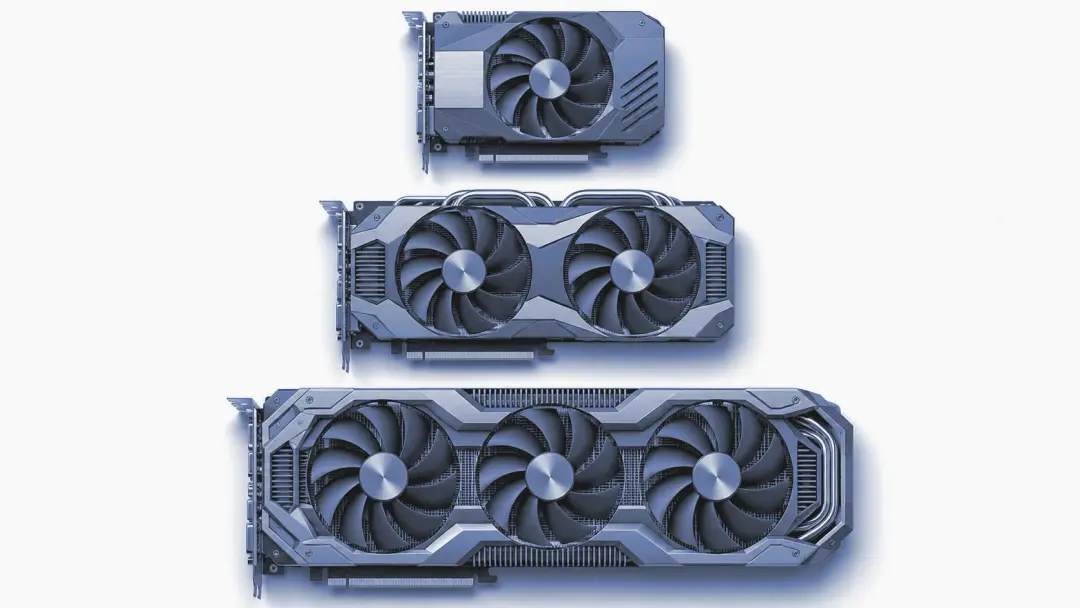
Start with the workload, not the label
Choosing a GPU for professional work begins with a simple question: what will the machine do most of the time? Rendering, machine learning training, simulation, and data analysis can all use GPU compute, but they do not place the same demands on hardware. A card with impressive gaming results may be a poor fit for a research workstation, while an expensive professional model may add little value to a small visualization team.
The phrase professional gpu selection workload is useful because it keeps the decision grounded in the job. Define the applications, data sizes, expected runtime, and acceptable noise or power use before comparing models. A spreadsheet with real workloads is more helpful than a product chart full of dramatic adjectives.
A GPU is a processor designed to handle many operations in parallel, alongside the system CPU and other components. This GPU overview explains the basic role of graphics processors and why their architecture suits highly parallel tasks. The details matter because compute performance is only one part of the result.
Consumer and professional GPUs are built for different priorities
Consumer GPUs often focus on graphics output, gaming performance, and a broad selection of software. They can be perfectly capable in content creation, local machine learning experiments, and technical visualization. Their main advantage is often a strong amount of compute performance for the purchase price, although the exact value depends on the application and current availability.
Professional GPUs place more emphasis on predictable operation, application support, memory capacity, and deployment requirements. Some workflows benefit from specific software compatibility and extended support options. That does not mean every professional card is automatically faster. It means the surrounding requirements may be more important than a headline benchmark.
Before buying, ask the software vendor or internal engineering team five direct questions: Which GPU APIs are supported? How much VRAM is needed for the largest normal job? Does the application use one GPU or several? What driver support is recommended? Which errors are acceptable during a long run? Write down the answers. This prevents a common mistake: paying for a feature that your workload never uses.
Match specifications to the task
For rendering, compare sustained compute performance, VRAM capacity, memory bandwidth, and application support. Scene complexity matters more than a simple resolution number. A card may complete small projects quickly but slow down when textures, geometry, or simulation data exceed available memory. Check the largest scene you expect to open, not only an average project.
For machine learning training, VRAM is often a first constraint. Model size, batch size, input resolution, and precision settings all affect memory use. More VRAM can allow larger jobs, but it cannot repair inefficient code or unsuitable architecture. More VRAM doesn't fix bad architecture, but it helps. Also check whether the framework supports the card's compute features and whether multi-GPU communication will become a bottleneck.
Scientific computing needs closer testing. Numerical precision, memory access patterns, bandwidth, and library support can matter more than graphics-focused benchmarks. Ask for a representative test case and record completion time, error behavior, memory use, and power draw. A benchmark that resembles your actual calculation is worth far more than a generic score.
For mixed workloads, rank priorities instead of seeking a mythical all-purpose card. Decide which task is business-critical, which can run overnight, and which needs interactive response. That ranking helps you choose between more VRAM, higher compute performance, lower power use, or a quieter workstation.
Calculate performance per watt in the real system
Power efficiency is not just a specification on the box. Measure useful work completed divided by the energy used during that work. For example, record how long a repeatable render or training run takes, note the system's average power draw, and compare the energy consumed across candidate configurations. A faster card can still be the less efficient choice if it draws much more power for a small time saving.
Include the whole platform in the calculation: GPU, CPU, memory, storage, cooling, and power supply. Cooling has a cost in electricity, noise, and physical space. Sustained workloads also need thermal headroom. If a card reaches its thermal limits quickly, boost clocks may fall and the result may differ from a short benchmark.
Do not treat overclocking as free performance. It can increase heat, power use, and instability, while making results harder to reproduce. For professional systems, a stable configuration with a small performance margin is often easier to operate than a faster setup that requires constant adjustment. The hardware should fit the room as well as the benchmark.
Plan the infrastructure before adding more GPUs
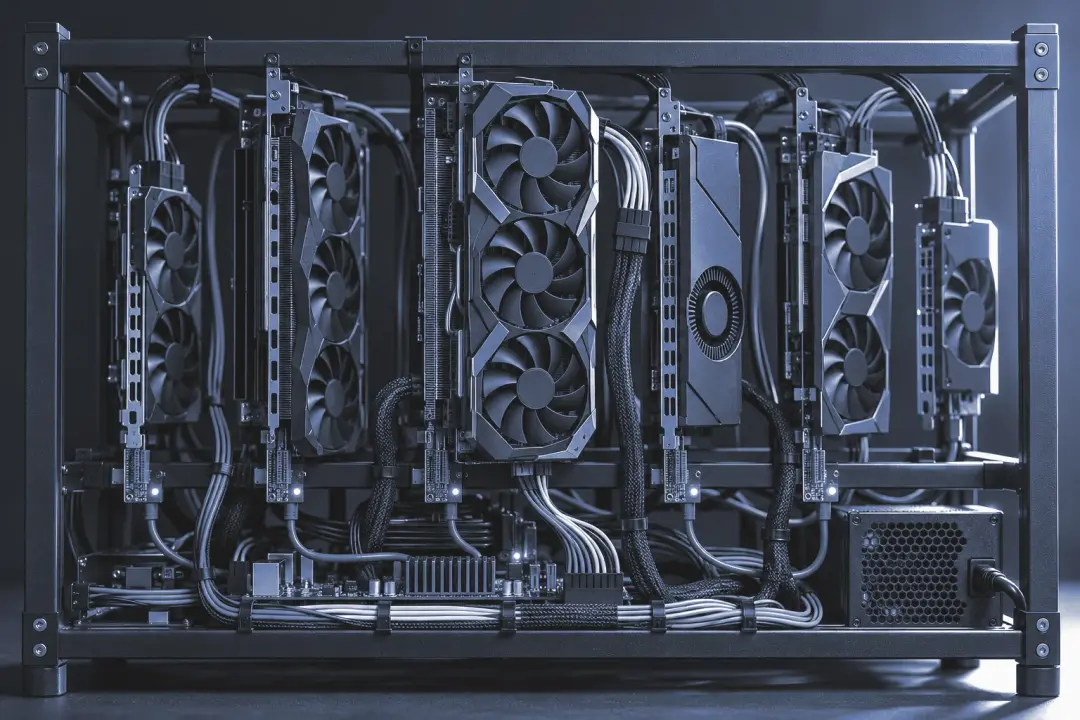
A single workstation and a multi-GPU server have different problems. With several GPUs, check PCIe lane availability, slot spacing, airflow, power delivery, chassis limits, and the way your software divides work. Two cards do not always provide twice the useful performance. Data transfer, synchronization, storage speed, and software licensing can reduce the gain.
Start with a small pilot using the exact model, dataset, and application version planned for wider deployment. Record job time, VRAM usage, failure points, temperature, and energy use. Then estimate the number of machines needed for your real queue, not an idealized maximum. Leave capacity for maintenance and unexpected demand instead of filling every slot on day one.
Supply can also change. Silicon shortages, shifting demand from AI workloads, and logistical or geopolitical constraints may affect availability and lead times. Treat those factors as planning risks, not as reasons to buy blindly. Keep a second technically compatible configuration under review, and confirm that your power and cooling design can support it.
For background on the wider computer hardware environment, this hardware reference is a useful starting point. When a system already has faults, component checks should come before a new GPU purchase. GraphIQ provides computer and peripheral equipment repair; you can use the services page to review that type of support and the contact page to arrange a discussion.
A practical buying checklist
Before approving a purchase, document the workload and its limits. Include the application version, largest project or dataset, required VRAM, precision mode, expected run time, target response time, and acceptable noise level. Ask the supplier for technical documentation rather than relying on a short marketing summary.
Verify the physical installation: dimensions, connectors, power supply capacity, airflow direction, motherboard slot layout, and operating temperature. Check driver support and the maintenance process. A GPU that cannot fit the existing case is not a bargain, even if its compute figures look attractive.
Avoid choosing from one benchmark. Run at least one representative test, compare results per watt, and review memory use during the worst normal case. Separate must-have requirements from preferences. This simple distinction often removes expensive options that add no useful capacity.
Finally, keep a record of the selected configuration and why it was chosen. Hardware decisions become easier to review when the assumptions are visible. If your needs change, you can identify whether the limit is the GPU, VRAM, storage, network, software, or cooling rather than blaming the graphics card for every slow result.